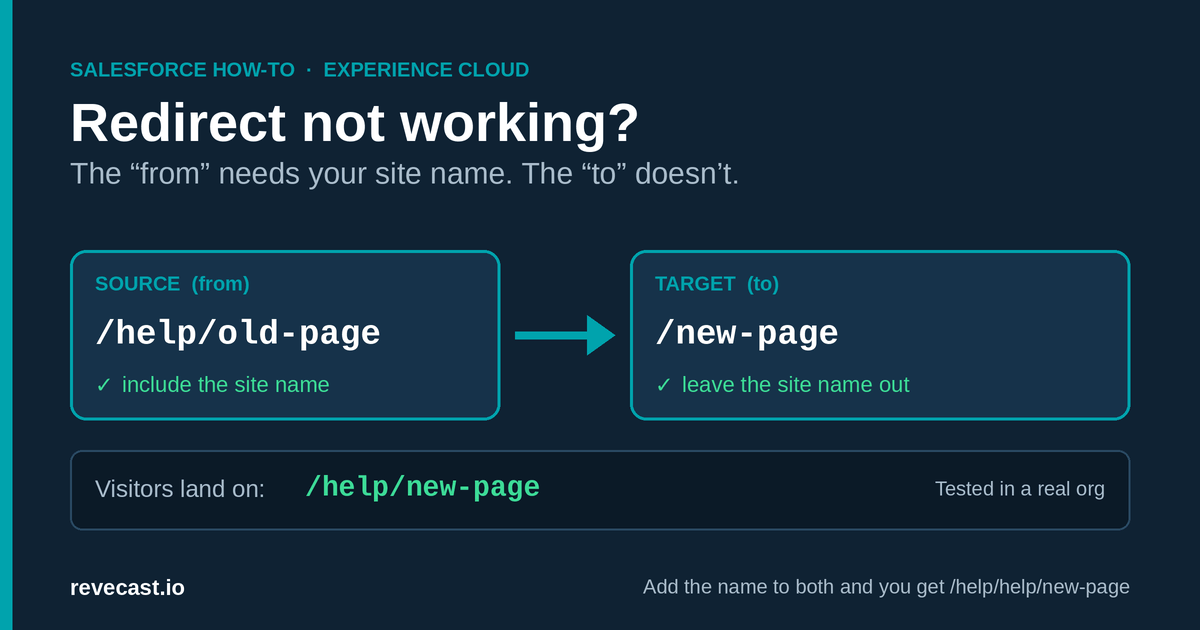
The short version: if your Experience Cloud redirect isn’t working, the “from” address needs your site’s name in it, and the “to” address doesn’t. The rest of this guide explains what that means and why, for anyone who looks after a Salesforce site, not just developers.
First, some background
What is Experience Cloud?
Experience Cloud is the part of Salesforce that lets an organization build websites on top of its Salesforce data: customer help centers, partner portals, member or student sites, and so on. Many organizations run several of these sites from one Salesforce account.
What is a redirect, and why would you need one?
A redirect is a forwarding instruction for a web address. When someone visits an old address, the site automatically sends them to a new one, the same way the post office forwards mail after you move.
You need one whenever a page’s address changes. Common reasons:
- You renamed or reorganized pages on your site.
- You moved from an older site to a new one.
- People have bookmarked, emailed or printed the old links.
- Search engines like Google still list the old address.
Without a redirect, all of those visitors hit a “page not found” error. With one, they land on the right page without noticing anything happened.
Permanent or temporary?
Salesforce asks you to choose one of two kinds of redirect:
- Permanent (also called a 301): the old page is gone for good. Search engines move the old page’s ranking over to the new address. This is the right choice almost every time.
- Temporary (a 302): the old page is coming back later, for example during maintenance.
The problem
Here’s what people typically report. They add a redirect in Salesforce, then visit the old address, and one of two things happens:
- They still get “page not found”, as if the redirect doesn’t exist.
- The redirect works, but sends them to a broken address with the site’s name in it twice, like
/help/help/new-page.
Salesforce doesn’t show an error in either case, which is what makes it confusing. The redirect is set up. It’s the way the two addresses are written that’s wrong.
Why it happens: your site has a name in its address
Every Experience Cloud site lives at its own address, usually ending in a short name for the site. For example, a help center might live at:
https://yourcompany.my.site.com/help
That last part, /help, is the site’s prefix. Every page on the site starts with it, like /help/contact-us or /help/faq.
A Salesforce redirect has two boxes to fill in:
- Source: the old address people are visiting (the “from”).
- Target: the new address to send them to (the “to”).
The catch is that Salesforce treats the site prefix differently in each box, and nothing on screen tells you so.
The rule
/help/old-pageTarget: leave the site prefix out. Write just the page:
/new-page. Salesforce adds /help for you.
Why the difference? Source is matched against the exact address a visitor typed, so it has to be complete. Target is treated as a page inside your site, so Salesforce adds the site’s prefix on its own. If you add it too, you get it twice.
What we saw when we tried each version
We tested this on a real Experience Cloud site whose prefix was /redirectpilot:
| What we put in Source | What we put in Target | What happened |
|---|---|---|
/old-page |
/new-page |
“Page not found.” The redirect never kicked in, because no visitor’s address matches /old-page on its own. |
/redirectpilot/old-page |
/redirectpilot/new-page |
Sent visitors to /redirectpilot/redirectpilot/new-page, a broken address with the prefix twice. |
/redirectpilot/old-page |
/new-page |
Worked. Visitors landed on /redirectpilot/new-page. |
Quick way to tell which mistake you made: if you still get “page not found”, add the prefix to Source. If you see the site name twice in the address bar, take it out of Target.
Fixing a redirect you already created
You’d expect to just edit the Source and save. Salesforce won’t let you: once a redirect is created, its Source can’t be changed. If you try, you get this message:
INVALID_FIELD_FOR_INSERT_UPDATE: Unable to create/update fields: Source. Please check the security settings of this field and verify that it is read/write for your profile or permission set.Don’t be misled by the mention of security settings. It isn’t a permissions problem; Source simply can’t be changed after it’s set.
Switching the old redirect off doesn’t help either. Salesforce still counts it, and refuses to let you create a new one with the same Source:
FIELD_INTEGRITY_EXCEPTION: Error on Source URL: /old-page. No duplicate Source URLs allowedSo the fix is: delete the old redirect, then create a new one with the addresses written correctly.
Checking that it works
Testing in your own browser can fool you. Browsers remember permanent redirects, so you might keep seeing an old result after you’ve fixed it. You’re also usually signed in to Salesforce, which visitors aren’t. Two simple ways around that:
- The easy way: open a private or incognito browser window and visit the old address.
- The technical way: if you’re comfortable with a command line, run
curl -sIfollowed by the old address. It shows exactly what the site sends back without following the redirect.
curl -sI https://yourcompany.my.site.com/help/old-pageA working redirect answers with two key lines:
HTTP/2 301
location: https://yourcompany.my.site.com/help/new-page
The 301 means “moved permanently”. The location line is where visitors are being sent. Check it has your site prefix exactly once.
One thing we noticed: after we made our test site private (sign-in required), its home page sent visitors to the login screen, but the redirect still worked for people who weren’t signed in. We saw this once, on one site, so treat it as an observation rather than a rule. It does mean a working redirect isn’t proof that your site is open to the public.
Where to set redirects
In Salesforce’s screens: Salesforce has a URL Redirects page in Experience Builder, under Administration. We only tested the API method below, not this screen. The same Source and Target rule should apply, but check your result with the private-window test above before you rely on it.
In bulk, for admins and developers: if you’re moving a whole site and need dozens of redirects, typing them in one at a time is slow. Each redirect is stored in Salesforce as a record called SiteRedirectMapping, so they can be created in bulk with the Salesforce command-line tool or a data loading tool. These are the fields to fill in:
| Field | What to put |
|---|---|
SiteId |
The ID of your site’s Site record |
Source |
The old address with the prefix, e.g. /help/old-page |
Target |
The new page without the prefix, e.g. /new-page |
Action |
Permanent or Temporary |
IsActive |
true |
IsDynamic |
false for a simple one-page-to-one-page redirect |
An example with the Salesforce command-line tool:
sf data create record -s SiteRedirectMapping \
  -v "SiteId=<your Site Id> Source=/help/old-page Target=/new-page Action=Permanent IsActive=true IsDynamic=false" \
  -o <your org alias>
And to list your redirects afterwards and check them:
SELECT Id, Source, Target, Action, IsActive FROM SiteRedirectMappingOne thing to watch: when we created a new site through the API, Salesforce made two Site records for it, one with the site’s normal address and one ending in vforcesite. The redirects that worked were attached to the one with the normal address.
We built a new Experience Cloud site (the newer “LWR” type) in a Salesforce Developer Edition test org on API 68.0 (Winter ’27), on 2026-10-29 and 2026-10-30. We created two redirects, read them back from Salesforce, and checked both from the outside without signing in. Both sent visitors to the correct page. The “page not found” result, the doubled address and both error messages above all came from that same test.
How Orchestrate did this
This guide started as a question someone asked on Salesforce Stack Exchange. We gave it to a Revecast Orchestrate session connected to a test org. Orchestrate switched on Experience Cloud, built the site, created the redirects, tested them and tidied up afterwards, all without anyone clicking through Salesforce Setup. Its first two attempts failed, with the “page not found” and the doubled address shown above, and those failures are how we found the rule. That’s how we write every guide: we try it in a real org first and only publish what we saw work.
Moving a site or cleaning up an org? Try Revecast Orchestrate free.
Reviewed by the Revecast Team. Tested in a live Salesforce org on 2026-10-30.