The short version: Since the Spring ’26 release, Salesforce has switched off the creation of new Connected Apps, which is why the New Connected App button is greyed out or missing. Build an External Client App instead. It does the same job (it gives an outside system a Consumer Key and Secret to log in with OAuth), but its settings are split in two places, and most “it doesn’t work” problems come from setting only one of them. If the Consumer Key and Secret page gives you “Insufficient Privileges”, check your External Client App permissions, or read them with a REST API call instead.
What changed, and when
Connected Apps are how outside systems (an ERP, a middleware tool, a script) have traditionally logged in to Salesforce. Salesforce is retiring them in favour of External Client Apps, which are closed by default and keep the developer’s settings separate from the admin’s access rules.
| When | What happens |
|---|---|
| Spring ’26 | Creating new Connected Apps is switched off by default in every org. Salesforce Support can turn it back on for now, but has said that won’t be possible in a later release. |
| February 20, 2027 | The username-password, user-agent and hybrid user-agent OAuth flows retire. |
| Summer ’27 | Salesforce support for Connected Apps ends. |
Your existing Connected Apps are not affected by the Spring ’26 change. It only stops you making new ones.
“But my deploy still created one”
You may see advice that the block applies to the Metadata API too. In our test, it didn’t: on 30 October 2026, in a Developer Edition org on the Winter ’27 release, a Metadata API deploy of a brand-new Connected App succeeded and the app appeared in the org. Your org may behave differently, and the dates above still apply, so we don’t recommend building anything new on a Connected App. Treat a deploy that still works as a loophole, not a plan.
The fix: create an External Client App
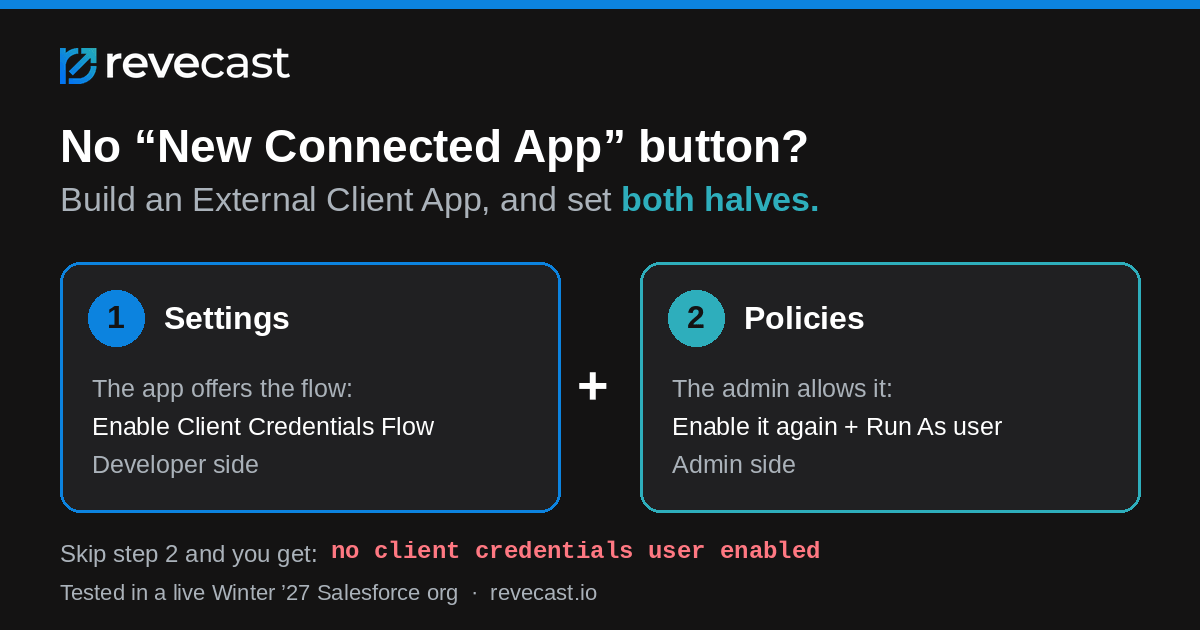
The example below sets up the most common server-to-server case: another system logs in with the client credentials flow (a Consumer Key and Secret, no user typing a password). The settings are split into two halves, and you need both.
- In Setup, open External Client App Manager (or App Manager) and create a New External Client App. Give it a name and contact email, and leave Distribution State as Local (Packaged is only for apps you ship inside a managed package).
- Turn on Enable OAuth Settings. Add a callback URL (any valid HTTPS URL works for client credentials, for example
https://login.salesforce.com/services/oauth2/success) and the scopes the system needs. For API access, Manage user data via APIs (api) is usually enough. - Under Flow Enablement, tick Enable Client Credentials Flow, then save. This is the first half: the app now offers the flow.
- Open the app’s Policies tab, click Edit, tick Enable Client Credentials Flow again and choose the user the app runs as (the field is labelled Run As or Integration User, depending on your release). This is the second half: the admin allows the flow and says whose access it uses. Save.
- Make that user a dedicated integration user, with only the permissions that system needs. Everything the outside system does runs with that user’s access.
If you skip step 4, the token request fails with no client credentials user enabled. That’s the single most common reason a new External Client App “doesn’t work”.
Getting the Consumer Key and Secret
The app’s Settings tab has a button to view them (labelled Consumer Key and Secret or Manage Consumer Details). Many admins, including System Administrators, report Insufficient Privileges when they click it. Viewing these details needs the new External Client App permissions. In our test org, the standard System Administrator profile on the Salesforce licence already had all three, so first check that your profile or a permission set gives them to you. Some admins report a “user license doesn’t allow the permission” error when they try to add them; if that’s you, raise it with Salesforce Support.
You can also read the key and secret through the REST API, which is quicker and can be scripted. Our test user had the three permissions, so we can’t promise this route works without them.
- For the Consumer Key only: call the credentials REST API described in the developer section below. In our test it returned the key straight away, without changing any org setting.
- For the Secret as well: first go to Setup, open External Client Apps > Settings, and turn on Allow access to External Client App consumer secrets via REST API. Then make the same call with
part=keyandsecret. - Copy the key and secret into the other system’s secret store, then switch the setting back off if you don’t need it. The secret is a password: don’t paste it into email, chat or a ticket.
One trap here: with that setting off, asking for the secret doesn’t give an error. Salesforce returns the key and simply leaves the secret out, so it looks like the call half-worked.
The errors you’ll see, and what they mean
| Error | What it really means | Fix |
|---|---|---|
no client credentials user enabled | The app offers the client credentials flow, but its policy doesn’t allow it or has no Run As user. | Policies tab: enable the flow and pick the user it runs as. |
client identifier invalid | Salesforce doesn’t recognise the key at the address you sent it to. In our test this happened every time we used login.salesforce.com, even after the app was fully set up. | Send the token request to your org’s My Domain address, for example https://yourcompany.my.salesforce.com/services/oauth2/token. |
| Secret missing from the response, no error | The REST access setting for secrets is off. | Turn on Allow access to External Client App consumer secrets via REST API. |
For developers: the metadata and API calls
An External Client App is several metadata types. These are the files we deployed at API version 68.0. The first three must go in the same deploy: deploying the global OAuth settings on their own fails with The external client app configured in your global OAuth Settings doesn't have a valid OAuth settings configuration.
<!-- externalClientApps/My_ECA.eca-meta.xml -->
<ExternalClientApplication xmlns="http://soap.sforce.com/2006/04/metadata">
    <contactEmail>admin@example.com</contactEmail>
    <distributionState>Local</distributionState>
    <isProtected>false</isProtected>
    <label>My ECA</label>
</ExternalClientApplication>

<!-- extlClntAppOauthSettings/My_ECA_oauth.ecaOauth-meta.xml -->
<ExtlClntAppOauthSettings xmlns="http://soap.sforce.com/2006/04/metadata">
    <commaSeparatedOauthScopes>Api</commaSeparatedOauthScopes>
    <externalClientApplication>My_ECA</externalClientApplication>
    <label>My_ECA_oauth</label>
</ExtlClntAppOauthSettings>

<!-- extlClntAppGlobalOauthSets/My_ECA_glbloauth.ecaGlblOauth-meta.xml -->
<!-- Contains sensitive OAuth settings: keep it out of source control -->
<ExtlClntAppGlobalOauthSettings xmlns="http://soap.sforce.com/2006/04/metadata">
    <callbackUrl>https://login.salesforce.com/services/oauth2/success</callbackUrl>
    <externalClientApplication>My_ECA</externalClientApplication>
    <isClientCredentialsFlowEnabled>true</isClientCredentialsFlowEnabled>
    <isConsumerSecretOptional>false</isConsumerSecretOptional>
    <isPkceRequired>true</isPkceRequired>
    <isSecretRequiredForRefreshToken>true</isSecretRequiredForRefreshToken>
    <label>My_ECA_glbloauth</label>
</ExtlClntAppGlobalOauthSettings>
Note the element name: it’s isClientCredentialsFlowEnabled. Our first attempt used isClientCredentialsEnabled and failed with Element {http://soap.sforce.com/2006/04/metadata}isClientCredentialsEnabled invalid at this location in type ExtlClntAppGlobalOauthSettings.
Salesforce creates the two policy records for you (My_ECA_defaultPolicy and My_ECA_oauth_defaultPolicy), with client credentials switched off. Deploy the OAuth policy afterwards to switch it on and set the Run As user:
<!-- extlClntAppOauthPolicies/My_ECA_oauth_defaultPolicy.ecaOauthPlcy-meta.xml -->
<ExtlClntAppOauthConfigurablePolicies xmlns="http://soap.sforce.com/2006/04/metadata">
    <clientCredentialsFlowUser>integration.user@example.com</clientCredentialsFlowUser>
    <externalClientApplication>My_ECA</externalClientApplication>
    <ipRelaxationPolicyType>Enforce</ipRelaxationPolicyType>
    <isClientCredentialsFlowEnabled>true</isClientCredentialsFlowEnabled>
    <isGuestCodeCredFlowEnabled>false</isGuestCodeCredFlowEnabled>
    <isTokenExchangeFlowEnabled>false</isTokenExchangeFlowEnabled>
    <label>My_ECA_oauth_defaultPolicy</label>
    <permittedUsersPolicyType>AllSelfAuthorized</permittedUsersPolicyType>
    <refreshTokenPolicyType>SpecificLifetime</refreshTokenPolicyType>
    <refreshTokenValidityPeriod>365</refreshTokenValidityPeriod>
    <refreshTokenValidityUnit>Days</refreshTokenValidityUnit>
    <requiredSessionLevel>STANDARD</requiredSessionLevel>
</ExtlClntAppOauthConfigurablePolicies>
To check whether a user has the External Client App permissions, query their profile or permission sets for PermissionsExternalClientAppViewer, PermissionsExternalClientAppAdmin and PermissionsExternalClientAppDeveloper:
SELECT PermissionSet.Name, PermissionSet.PermissionsExternalClientAppViewer,
       PermissionSet.PermissionsExternalClientAppAdmin, PermissionSet.PermissionsExternalClientAppDeveloper
FROM PermissionSetAssignment WHERE Assignee.Username = 'admin@example.com'
To read the key (and, with the REST setting on, the secret), find the app’s Id and call the credentials resource. The first call lists the app’s consumers; the second returns the key and secret for one of them:
# Tooling API: find the app Id (starts with 0xI)
SELECT Id, DeveloperName FROM ExternalClientApplication WHERE DeveloperName = 'My_ECA'

# List the app's consumers (returns the consumer Id, starting 888, and the key)
GET /services/data/v68.0/apps/oauth/credentials/{appId}

# Key and secret (secret only if the REST access setting is on)
GET /services/data/v68.0/apps/oauth/credentials/{appId}/{consumerId}?part=keyandsecret

# Using the Salesforce CLI, which signs the request for you:
sf api request rest "/services/data/v68.0/apps/oauth/credentials/{appId}" --target-org myOrg
Then the token request, sent to My Domain:
curl -X POST https://yourcompany.my.salesforce.com/services/oauth2/token \
  -d grant_type=client_credentials \
  -d client_id="$CONSUMER_KEY" \
  -d client_secret="$CONSUMER_SECRET"
How Revecast Orchestrate tested this
A Revecast Orchestrate session ran every step above on 30 October 2026, in a Salesforce Developer Edition test org on the Winter ’27 release (API version 68.0), through the API with no clicks in Setup, as a System Administrator whose profile had all three External Client App permissions. It first deployed a classic Connected App to see whether creation was blocked; the deploy succeeded, which is why this guide says so. It then built an External Client App. Two deploys failed first, one on the wrong element name and one because the OAuth settings weren’t in the same deploy, and both errors are quoted above. It read the Consumer Key through the credentials API with the secrets setting off (the key came back, the secret was silently left out), switched the setting on and read the secret. It asked for a token before setting the policy (no client credentials user enabled), set the policy, and got a token from My Domain, then used it to run a query successfully. The same request to login.salesforce.com failed before and after. Afterwards it switched the secrets setting back off and deleted both test apps. The Setup screen names in the admin steps come from Salesforce’s interface; the session did the equivalent work through the API.
Got integrations to move off Connected Apps before Summer ’27? Try Revecast Orchestrate free.
Reviewed by the Revecast Team. Tested in a live Salesforce org on 2026-10-30.